
Agentic AI
The Agentic AI tab allows administrators to integrate AI-powered automation directly into a component. Instead of manually processing files, calculating values, or extracting information, the component can use an AI model to perform these tasks automatically.
This feature is designed for situations where the system needs to analyze documents, extract structured data, generate insights, or transform inputs into usable outputs.
For example, an organization might configure Agentic AI to:
- Extract financial data from uploaded balance sheets
- Analyze vendor financial stability
- Summarize documents
- Convert unstructured text into structured database fields
In the example shown in the interface, the Agentic AI configuration is used to compute an Altman Z-Score, which is a financial indicator used to estimate a company’s bankruptcy risk.
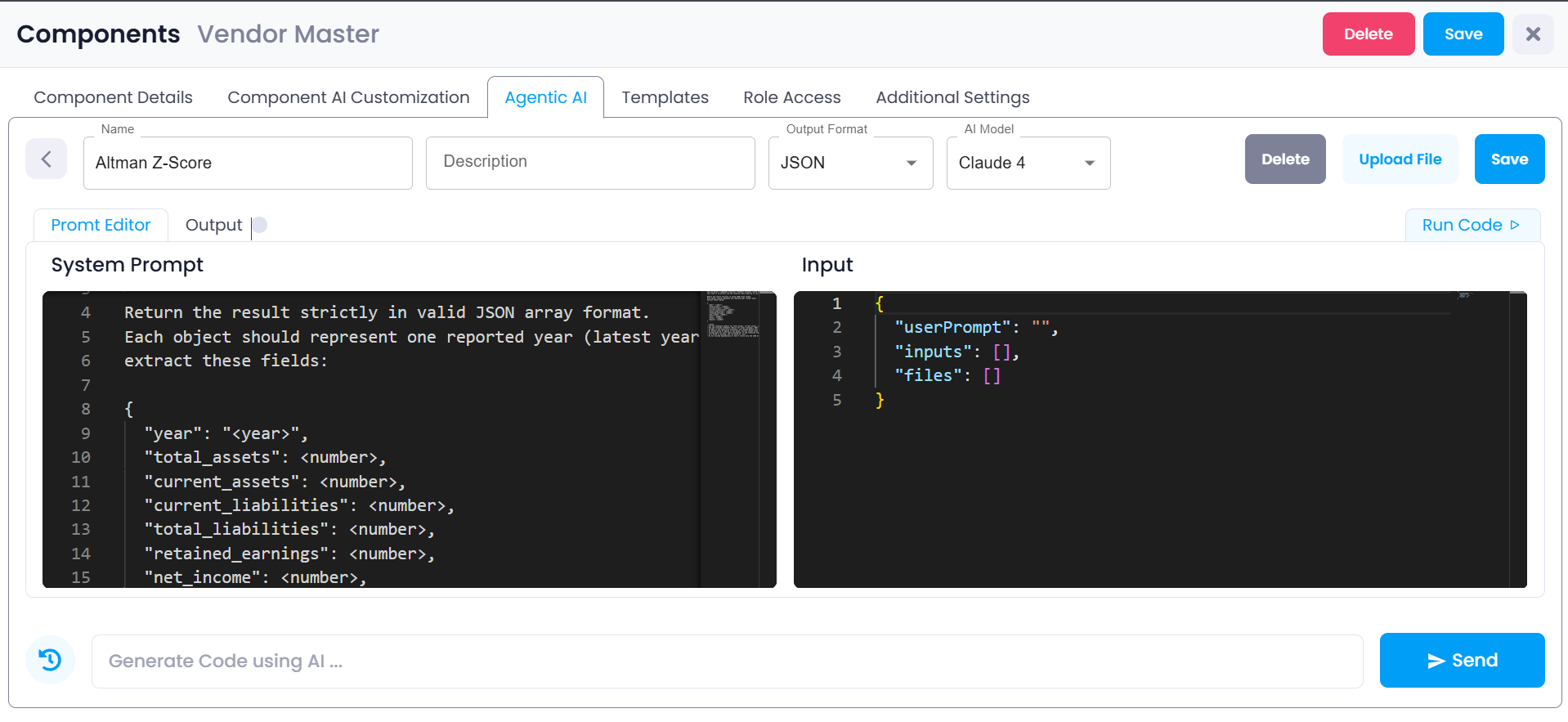
Accessing the Agentic AI Configuration
Step 1: Open the Components section from the left sidebar.
Step 2: Select the component you want to configure.
Step 3: Click the Agentic AI tab located in the top navigation of the component configuration page.
Step 4: If no AI configuration exists yet, click Create New Agentic AI.
Once selected, the system opens the Agentic AI configuration interface, where administrators can define how the AI will operate.
Agentic AI Configuration Fields
Before defining how the AI processes data, the administrator must configure several basic settings.
These settings define what the AI configuration represents and how its output should be structured.
Name
The Name field is used to identify the AI configuration.
This name represents the purpose of the AI process that will run within the component.
For example:
- Altman Z-Score
- Vendor Risk Analysis
- Document Data Extractor
- Invoice Parser
Choosing a clear and descriptive name helps administrators quickly identify what the AI configuration is designed to do.
Description
The Description field provides additional context explaining the purpose of the AI configuration.
This field is optional but highly recommended because it documents how the AI is intended to be used within the system.
For example, the description might explain:
- What data the AI processes
- What output it generates
- Where the output will be used in the component
This helps other administrators understand the configuration when reviewing system settings later.
Output Format
The Output Format determines how the AI returns its results.
In the interface shown, the selected format is JSON.
JSON (JavaScript Object Notation) is a structured format that allows the system to easily process the AI’s response.
Example JSON output:
{
  "year": 2024,
  "total_assets": 5000000,
  "current_assets": 1200000,
  "net_income": 450000
}
Using JSON ensures that the output can be directly interpreted by the platform and mapped to database fields if required.
AI Model
The AI Model field allows the administrator to choose which AI model will process the request.
In the screenshot, the selected model is Claude 4.
Different AI models may have different capabilities depending on the system configuration. Selecting the appropriate model ensures that the AI performs the task accurately.
The AI model interprets the instructions defined in the prompt and generates the final response.
Prompt Editor
Below the configuration fields is the Prompt Editor.
This is the most important part of the Agentic AI configuration.
The Prompt Editor contains the System Prompt, which defines the instructions that guide the AI.
The system prompt explains:
- What information the AI should extract
- How the AI should interpret the input
- What format the output must follow
In the example shown in the interface, the system prompt instructs the AI to extract financial fields and return them in JSON format.
Example fields requested in the prompt include:
- year
- total_assets
- current_assets
- current_liabilities
- total_liabilities
- retained_earnings
- net_income
The prompt ensures that the AI returns data in a consistent structure so it can be processed by the system.
Input Panel
On the right side of the screen is the Input panel.
This section allows administrators to define the data that will be provided to the AI.
The input panel is structured as JSON and contains three main fields.
{
  "userPrompt": "",
  "inputs": [],
  "files": []
}
userPrompt
The userPrompt field contains a text instruction that can be sent to the AI.
This allows additional context or instructions to be included when executing the AI process.
Example:
{
  "userPrompt": "Extract financial data from the uploaded balance sheet."
}
inputs
The inputs array allows structured data to be passed into the AI.
This data may come from component fields, tables, or other system sources.
Example input values may include:
- financial metrics
- transaction records
- vendor information
Providing structured inputs helps the AI process data more accurately.
files
The files section allows documents to be uploaded and processed by the AI.
Examples include:
- financial statements
- invoices
- contracts
- reports
The AI reads the content of these files and extracts the required information based on the instructions defined in the system prompt.
Running the AI Process
Once the configuration and inputs are defined, the AI process can be executed.
Step 1: Enter the required configuration details. Step 2: Define the System Prompt in the Prompt Editor. Step 3: Provide input data or upload files in the Input panel. Step 4: Click Run Code.
The system sends the prompt and input data to the selected AI model.
The AI processes the request and returns the output in the selected format.
Viewing AI Configurations
After creating an AI configuration, it appears as a card in the Agentic AI tab.
For example, in the screenshot, the system shows a configuration named:
Altman Z-Score
Administrators can open this configuration later to modify the prompt, change the model, or update the output format.
Multiple AI configurations can exist within the same component depending on operational requirements.
Why Agentic AI is Important
Agentic AI extends the capabilities of Supista components by introducing intelligent automation.
Instead of relying only on predefined system logic, components can use AI to process complex information.
Common use cases include:
- Financial risk analysis
- Document data extraction
- Report generation
- Data transformation
- Automated decision support
By integrating AI directly into components, Supista enables organizations to combine structured operational systems with intelligent data processing.