
Filters
Filters allow administrators to control which records appear inside a component. They are one of the most powerful configuration tools in Supista because they determine how users search, view, and access data.
In simple terms, filters answer the question:
"Which records should be visible under which conditions?"
Filters can be used for:
• Searching records
• Narrowing down large datasets
• Creating role-based visibility
• Restricting data access
• Automatically applying conditions to queries
• Showing only relevant records to users
For example:
• Show only active vendors
• Show warehouses with capacity greater than 500
• Show records created by the current user
• Restrict data based on user roles
Filters operate directly on table columns and evaluate values to determine whether a record should be displayed.
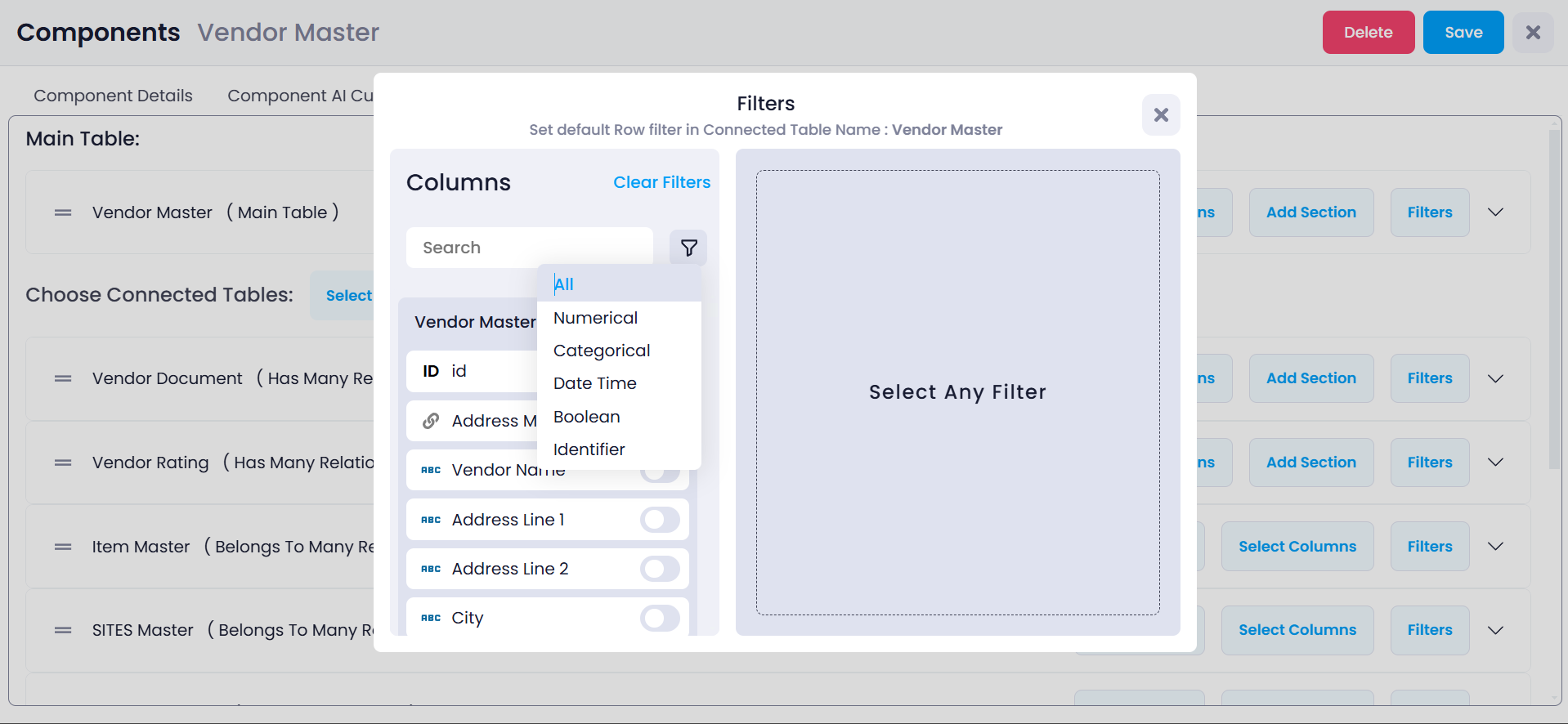
Understanding Filters in Supista
In Supista, filters are created by selecting columns from tables connected to the component and applying conditions to them.
Every component is connected to a Main Table, and it may also include connected tables through relationships such as:
- belongsTo
- hasMany
Because of these relationships, filters can be applied using columns from:
- The Main Table
- Tables connected through belongsTo
- Tables connected through hasMany
Example table structure:
Purchase Order (MAIN)
inventory_items (belongsTo)
Vendor Master (belongsTo)
Vendor Quotation Line Items (hasMany)
Filters allow administrators to define conditions using any of these available columns.
How Filters Are Applied
When a filter is configured, Supista evaluates the condition against each record in the dataset.
If a record matches the filter condition, it is displayed.
If a record does not match the condition, it is excluded from the component view.
For example:
Capacity > 500This condition means:
Only records where the Capacity value is greater than 500 will be displayed.
Filters can be combined to create more specific data conditions, allowing administrators to precisely control which records appear.
Core Filter Types in Supista
All filters in Supista fall into three main categories.
Understanding these categories helps administrators decide which filter type to use for different scenarios.
- Static Filters
- Dynamic Filters
- User Level Access Filters
1. Static Filters
Static filters are the most common type of filters.
They compare a column value against a fixed value defined by the administrator.
Example:
Status = Active
Capacity > 500
ID = 15
In static filters, the value does not change automatically.
It remains constant until the administrator modifies the filter.
Static filters operate directly on column values stored in the database.
Where Static Filters Are Used
Static filters are typically used for:
• Basic data filtering
• Narrowing datasets
• Excluding unwanted records
• Applying standard query conditions
Example scenarios:
Show only Active Vendors
Vendor Status = ActiveShow warehouses with capacity greater than 500
Capacity > 500Show records created in a specific year
Year = 2024Static filters are commonly used when the filtering rule remains consistent for all users.
Identifier Filters
Identifier filters apply to ID fields.
These fields contain unique numeric identifiers automatically generated by the system.
Example:
Record ID = 15Possible conditions include:
• Equals To
• Not Equals To
• In Range
Example:
ID in range 1 – 50This returns all records whose ID lies between 1 and 50.
Identifier filters are commonly used when administrators want to target specific records or record ranges.
Numerical Filters
Numerical filters apply to numeric columns.
Examples:
• Quantity
• Capacity
• Amount
• Price
• Stock Count
Available conditions include:
| Condition | Meaning |
|---|---|
| Equals To | Value must match exactly |
| Not Equals To | Value must be different |
| Greater Than | Value must be larger |
| Greater Than Or Equal | Value must be equal or larger |
| Less Than | Value must be smaller |
| Less Than Or Equal | Value must be equal or smaller |
| In Range | Value must lie between two numbers |
Example:
Capacity > 500Numerical filters are commonly used in inventory, financial, and operational datasets where numeric thresholds are important.
Categorical Filters
Categorical filters apply to text fields or labels.
Examples:
• Name
• Category
• Status
• Type
Common conditions include:
• Equals
• Contains
• Starts With
Example:
Warehouse Name = Central WarehouseAnother example:
Category Contains ElectronicsCategorical filters are useful when records are grouped or identified using text-based classifications.
Date Time Filters
Date filters apply to date and time fields.
Examples:
• Created Date
• Updated Date
• Start Date
• Expiry Date
Conditions include:
| Condition | Meaning |
|---|---|
| Before Date | Date earlier than value |
| After Date | Date later than value |
| Between Dates | Date lies between two values |
Example:
Created Date Between Jan 1 and Jan 31Date filters are commonly used for time-based data analysis and reporting.
Boolean Filters
Boolean filters apply to True / False values.
Example fields:
• Active
• Approved
• Enabled
• Verified
Possible values:
True
False
Example:
Active = TrueBoolean filters are typically used for status or approval-based fields.
Switch Filters
Switch filters are similar to Boolean filters but appear as toggle switches in the interface.
Example:
Enabled = TrueSwitch filters are commonly used for:
• Status toggles
• Enable / Disable settings
They allow administrators to quickly filter records based on binary states.
2. Dynamic Filters
Dynamic filters automatically determine their value based on system context or user context.
Unlike static filters, the value is not manually entered.
Instead, the system calculates it during runtime.
Example:
Created By = Current UserHere, Current User changes depending on who is logged in.
Dynamic filters are extremely useful when building personalized data views.
They allow components to automatically adjust the displayed data depending on who is accessing the system.
Common Dynamic Filter Examples
Current User
Shows records belonging to the logged-in user.
Created By = Current UserMeaning:
A user will only see records they created.
Current Date
Filters records based on today's date.
Expiry Date > Current DateMeaning:
Show only records that have not expired.
Current User Role
Filters records based on the role assigned to the user.
Department = Current User DepartmentMeaning:
Users see records related only to their department.
3. User Level Access Filters
User Level Access Filters are used when administrators want to control which records users are allowed to see.
This type of filter is mainly used for data security and access control.
In Supista:
If data visibility depends on who the user is, administrators use User Level Access Filters.
These filters are frequently used together with Role Access settings.
Example
Suppose we have a field:
Assigned UserA user-level filter could be:
Assigned User = Current UserThis ensures that:
A user can only see records assigned to them.
This approach is commonly used in systems where records must remain isolated between different users or teams.
Data Level Permissions
Filters are also used to control data-level operations inside components.
These include permissions such as:
| Permission | Description |
|---|---|
| Data | Controls which records are visible |
| Column Show / Hide | Controls which columns appear |
| Update | Controls whether records can be edited |
| Delete | Controls whether records can be removed |
Example:
Update allowed only if Created By = Current UserMeaning:
Users can edit only their own records.
Column Show / Hide with Filters
Filters can also control column visibility.
Example:
A field called Salary may be visible only to Admin users.
Condition:
User Role = AdminIf the user is not an Admin:
The column remains hidden.
This allows administrators to protect sensitive information while still displaying other data.
Dynamic vs Static Filters
Understanding the difference between dynamic and static filters is essential.
| Type | Value Source | Example |
|---|---|---|
| Static | Fixed value | Status = Active |
| Dynamic | System generated | Created By = Current User |
Static filters are predictable and constant.
Dynamic filters adjust automatically depending on:
• Logged in user
• Date and time
• System context
Summary
Filters are a foundational feature of Supista components. They allow administrators to define how records are searched, displayed, and secured.
Using filters effectively allows you to:
• Control record visibility
• Personalize user views
• Restrict data access
• Improve search efficiency
• Maintain data security
The three main filter categories are:
- Static Filters — fixed value comparisons
- Dynamic Filters — values generated by the system
- User Level Access Filters — filters used for data access control
Together, these filters allow administrators to build powerful, flexible, and secure data interfaces within Supista.