
Component AI Customization
After a component has been created and saved, Supista provides additional configuration capabilities that allow administrators to extend the behavior of the component beyond the default system logic. One of the most powerful sections available for this purpose is Component AI Customization.
This tab allows administrators to introduce custom logic and automated behavior into the operations performed within the component. Instead of relying only on the standard behavior provided by the platform, administrators can write scripts that modify how records are created, retrieved, updated, deleted, or processed.
Through this customization layer, organizations can implement business rules, workflow automation, data validation, and advanced operational logic directly inside the component.
This enables Supista components to adapt to real-world operational requirements without requiring changes to the core platform.
Opening the Component AI Customization Tab
To access this feature:
Step 1: Open the Components section from the left sidebar.
Step 2: Select the component you want to configure.
Step 3: Click the Component AI Customization tab at the top of the configuration page.
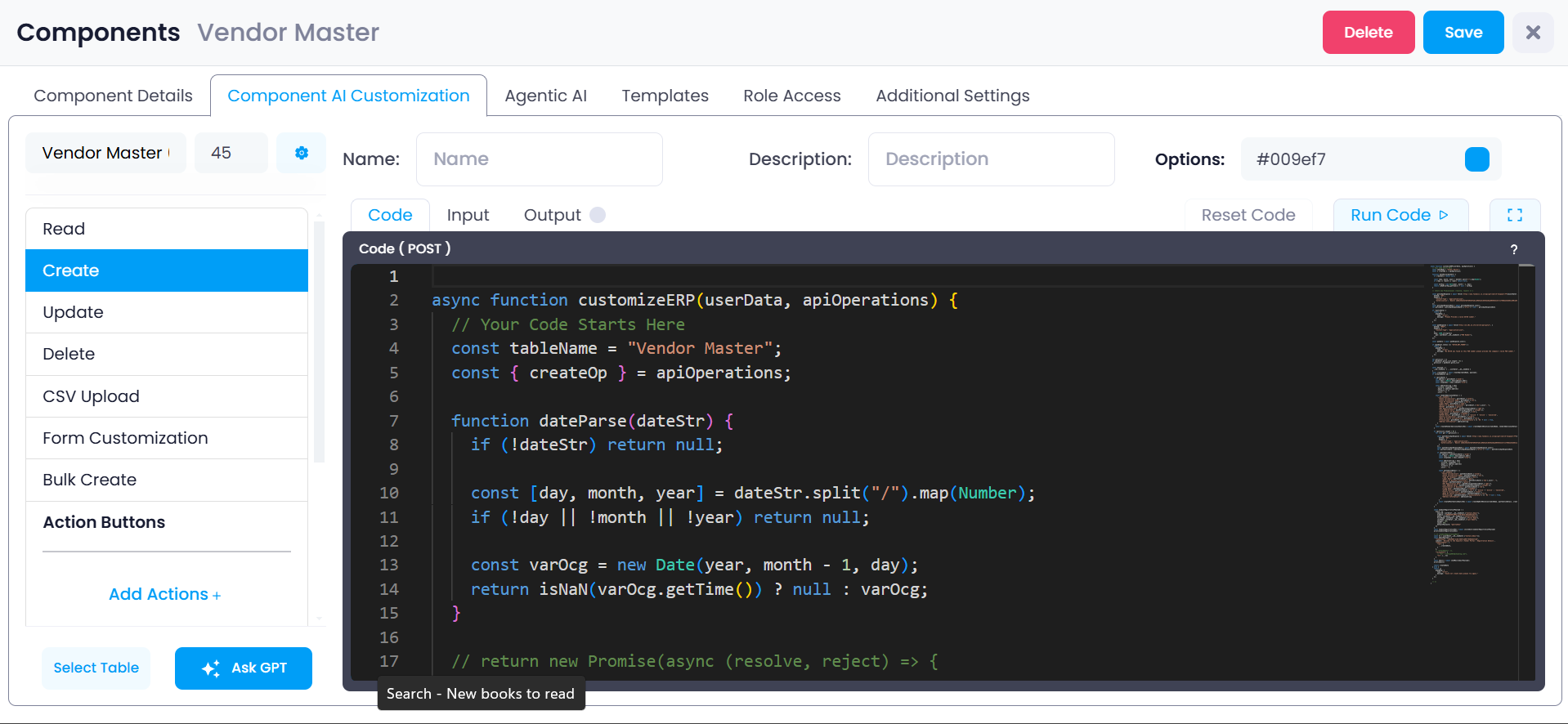
Once opened, the interface displays several sections that allow administrators to customize different operations within the component.
Understanding the Layout
The Component AI Customization interface contains three primary areas that work together to define how component behavior can be customized.
- Operation Panel
- Configuration and Metadata Fields
- Code Editor Workspace
Each of these sections serves a different purpose in the customization process.
The operation panel allows administrators to choose which system operation they want to modify.
The configuration fields provide contextual information about the rule being created.
The code editor allows administrators to write the script that implements the desired behavior.
Operation Panel
The interface provides a list of available operations that can be customized. These operations represent the actions that users perform when interacting with records inside the component.
Each operation can be individually configured using custom logic.
The available operations include:
• Read
• Create
• Update
• Delete
• CSV Upload
• Form Customization
• Bulk Create
Selecting one of these operations allows administrators to define how the system should behave when that specific action is triggered.
Read Operation
The Read operation controls how records are retrieved from the database when users open or view the component.
By default, Supista automatically retrieves records from the connected table and displays them to the user. However, administrators can customize this behavior by adding logic that modifies the query or the returned dataset.
Common Read customizations include:
• Restricting records based on user roles or teams
• Applying default filters automatically
• Limiting data visibility by department or location
• Sorting or transforming data before it is displayed
For example, a company may configure the system so that employees only see records belonging to their own department.
This helps enforce data access control and contextual data visibility.
Create Operation
The Create operation is triggered when a user adds a new record to the component.
Customization logic can be applied here to perform additional processing before or after the record is stored.
Examples of Create operation customizations include:
• Automatically generating identifiers
• Populating default field values
• Validating user input
• Creating related records in connected tables
For example, when a new vendor is created, the system may automatically assign a default credit limit or create an associated record in another table.
This ensures that important system rules are applied automatically during record creation.
Update Operation
The Update operation controls how records are modified after they have been created.
Custom logic can be added to validate changes, trigger automated workflows, or synchronize updates across related tables.
Examples of Update customizations include:
• Preventing edits to approved records
• Updating related records when values change
• Logging modifications for auditing purposes
This ensures that data integrity and operational policies are maintained whenever records are modified.
Delete Operation
The Delete operation determines how the system handles record deletion.
Instead of allowing direct deletion, administrators can introduce logic that protects important data.
Examples include:
• Preventing deletion if the record is referenced elsewhere
• Converting deletion into an archive process
• Recording deletion activity in audit logs
This helps maintain data integrity and traceability within the system.
CSV Upload
The CSV Upload operation is triggered when records are imported through a CSV file.
Administrators can customize this process to validate and clean incoming data before it is stored.
Examples include:
• Validating required fields
• Cleaning inconsistent data formats
• Automatically mapping CSV columns to table fields
• Rejecting rows that contain invalid values
This ensures that bulk data imports maintain data quality and consistency.
Form Customization
The Form Customization operation allows administrators to control how forms behave when users create or edit records.
This customization layer enables dynamic form behavior based on context or user input.
Examples include:
• Hiding fields depending on user role
• Dynamically populating dropdown values
• Displaying fields conditionally based on other inputs
This allows forms to adapt dynamically to different scenarios, improving usability and ensuring that users only interact with relevant fields.
Bulk Create
The Bulk Create operation is executed when multiple records are created simultaneously.
This operation is typically triggered during batch processing or large data imports.
Custom logic can be used to process each record within the batch.
Examples include:
• Applying validations to each record
• Generating sequential identifiers
• Triggering automated workflows for the batch
This ensures that large datasets are processed consistently and accurately.
Writing Custom Code
When an operation is selected, administrators can add logic by writing code inside the Code Editor.
The editor allows scripts to interact with Supista through predefined system parameters.
Opening the Code Editor
Step 1: Select an operation from the operation panel.
Step 2: Click Code.
Step 3: The code editor will appear where custom logic can be written.
The system automatically generates a starter template.
Example:
async function customizeERP(userData, apiOperations) {

const tableName = "Vendor Master";
const { createOp } = apiOperations;

}
Administrators can expand this template to implement the required business logic.
Understanding the Script Parameters
Two important parameters are automatically provided to every script.
userData
The userData object contains information about the user currently performing the operation.
This may include:
• User ID
• Team
• Role
• Permissions
Using this information, administrators can implement logic that changes system behavior depending on the user performing the action.
Example:
Restricting access based on department.
apiOperations
The apiOperations object provides functions used to interact with the system database.
These operations include:
• Reading records
• Creating records
• Updating records
• Deleting records
Using these functions, administrators can programmatically manipulate records inside the component.
For example, a script may automatically create a related record when a new vendor is added.
Running the Code
At the top-right of the editor, the system provides several controls.
• Run Code – Executes the script for testing
• Reset Code – Restores the default template
These tools allow administrators to safely test and refine their customization logic before deploying it.
Additional Configuration Options
Near the top of the interface, additional configuration fields are available.
Name
Defines the name of the customization rule.
Description
Provides documentation explaining the purpose of the rule.
Options
Allows administrators to configure additional parameters related to the rule behavior or interface configuration.
These fields help document and organize multiple customization rules.
More Options Panel
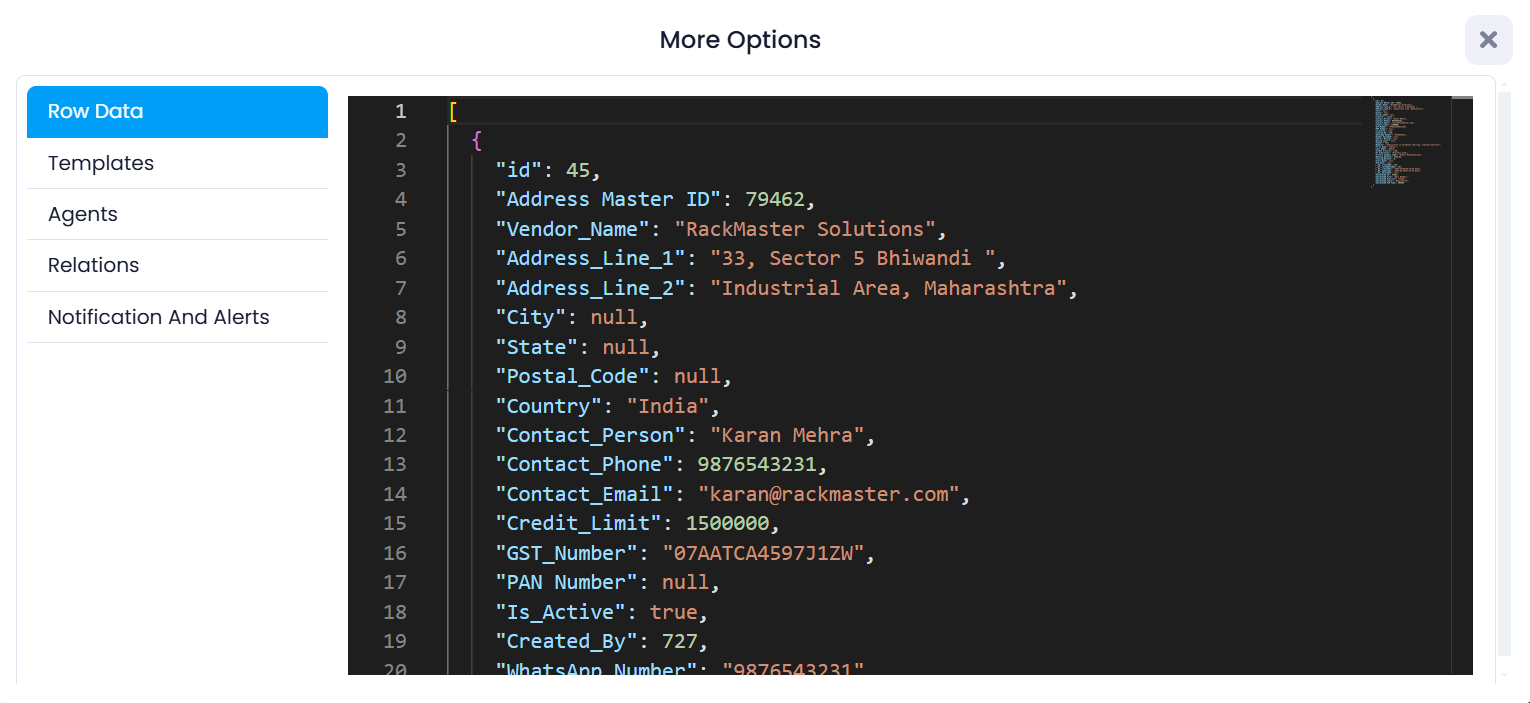
Clicking the settings icon opens the More Options panel.
This panel provides additional tools for inspecting component data and configuration details.
Row Data
The Row Data section displays records stored in the table in JSON format.
This allows administrators to inspect the structure of stored data.
Example:
{
"id": 45,
"Vendor_Name": "RackMaster Solutions",
"City": "Mumbai",
"Country": "India",
"Credit_Limit": 1500000
}
Viewing records in JSON format helps administrators understand:
• Field names
• Data structure
• Stored values
This information is extremely useful when writing scripts that reference specific fields.
Templates
The Templates section allows administrators to define reusable configurations for automation or workflows.
Templates help standardize behavior across multiple records or components and can simplify repetitive configuration tasks.
Agents
The Agents section is used to configure automated agents that perform tasks within the system.
Agents can monitor data changes and trigger automated actions such as:
• Notifications
• Record updates
• Integrations with other systems
These automated processes help reduce manual work and ensure important actions are triggered when specific conditions occur.
Relations
The Relations section displays relationships between the component’s table and other tables within the system.
Understanding these relationships is important when writing custom logic that interacts with related records.
Administrators can view how the component’s table is connected to other tables through relationships such as:
• belongsTo
• hasMany
This helps ensure that customization logic properly handles related data.
Notification and Alerts
This section allows administrators to configure alerts triggered by specific conditions within the component.
Examples include:
• Notifying a manager when a high-value purchase is created
• Alerting users when a contract is approaching expiration
These alerts help ensure that teams remain informed about important operational events.
Why Component AI Customization Is Important
Component AI customization provides administrators with fine-grained control over how the system behaves.
Instead of relying only on standard database operations, organizations can implement logic that reflects their real operational processes.
Examples include:
• Automated workflows
• Data validation rules
• Conditional access controls
• System integrations
By combining structured data with programmable logic, Supista enables organizations to build highly customized operational systems without modifying the core platform.