
Component Details
After clicking Create Components, Supista opens the Component Configuration Interface. This interface is used to define how a component behaves, how it connects to data tables, and how users will interact with the data stored in the system.
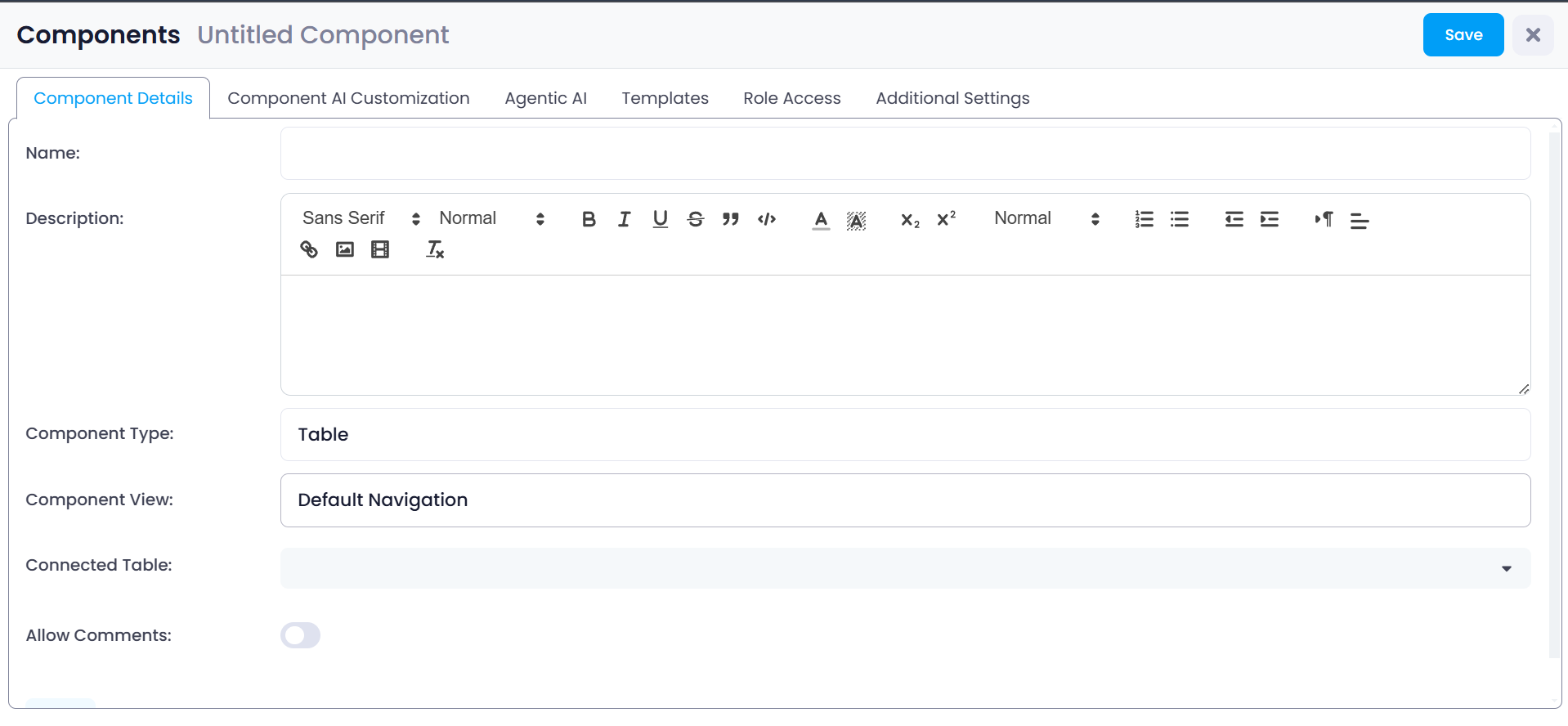
The first tab displayed is Component Details. This section contains the basic configuration required to create the component, including the component name, description, display type, and the table that provides its data. All other configuration settings for the component depend on the information defined here.
Opening the Component Details Page
To begin creating a component:
Step 1: Open the Components section from the left sidebar.
Step 2: Click Create Components located at the top-right of the page.
The system opens the component configuration interface, where the Component Details tab is displayed by default.
Entering Basic Component Information
The first part of the configuration focuses on identifying and documenting the component.
Step 1: Enter the Name of the component.
This name identifies the component throughout the platform and will appear when administrators select components while configuring modules or screens.
For example:
- Vendor Master
- Inventory Items
- Purchase Requests
- Employee Directory
Choosing a clear and descriptive name helps maintain an organized system structure.
Step 2: Add a Description.
The description field uses a rich text editor that allows formatted text such as headings, lists, and links. This section should explain the purpose of the component and the type of records it manages.
Providing a description helps other administrators understand the role of the component when reviewing system configurations in the future.
Selecting the Component Type
The Component Type setting determines how records from the connected table will be displayed to users.
To choose a type:
Step 3: Click the Component Type dropdown and select the desired view format.
Supista supports several component types, each designed for a different type of workflow or data visualization.
Table
The Table type displays records in a structured grid layout.
Each row represents a record, and each column represents a field from the connected data table. This format allows users to easily view, sort, and filter large datasets.
Typical use cases include:
- Vendor lists
- Employee directories
- Inventory records
- Purchase orders
This is the most commonly used component type for managing operational data.
Calendar
The Calendar component type displays records based on date-related fields.
Records appear within a calendar interface organized by day, week, or month. This allows users to quickly view scheduled activities or deadlines.
Typical use cases include:
- Meeting schedules
- Project deadlines
- Leave management
- Maintenance planning
Kanban
The Kanban type displays records as cards arranged in workflow columns.
Each column represents a stage in a process, and records can be moved between stages by dragging and dropping cards.
Typical use cases include:
- Task management workflows
- Sales pipelines
- Procurement approval stages
- Project progress tracking
This layout helps teams visually track workflow progress.
Gantt Chart
The Gantt Chart component type displays records as timeline bars across a project schedule.
Each record represents a task, and the chart shows when the task begins and how long it continues.
Typical use cases include:
- Project planning
- Construction schedules
- Product development timelines
- Resource allocation planning
Card
The Card component displays records as individual cards instead of rows.
Each card highlights important fields for the record, allowing users to quickly review key information.
Typical use cases include:
- Employee profiles
- Product catalogs
- Asset management
- Customer records
Card views are useful when records need to be displayed visually rather than in large tables.
KML
The KML component type is used for location-based data visualization.
Records that contain geographic coordinates can be displayed on a map interface. This allows users to see physical locations associated with records.
Typical use cases include:
- Asset locations
- Delivery routes
- Site inspections
- Branch office locations
Advanced Table
The Advanced Table component is an extended version of the standard table view.
It includes additional capabilities for handling complex datasets, such as enhanced filtering, grouping, and advanced data interaction features.
Typical use cases include:
- Financial datasets
- Analytical reports
- Large inventory systems
- Operational dashboards
Selecting the Component View
After selecting the component type, the next field is Component View.
Step 4: Choose the Component View option.
In the example shown, the selected option is Default Navigation, which controls how users move between records and interact with entries inside the component interface.
This setting defines how the interface behaves when records are opened or edited.
Connecting the Data Table
Every component must be connected to a data table.
Step 5: Select the Connected Table from the dropdown list.
Once a table is selected, the component automatically receives access to all columns defined in that table. These fields can then be used to display and manage records within the component.
For example, if the selected table contains fields such as:
- Vendor Name
- Contact Email
- Contract Value
- Expiry Date
these fields become available for display in the component interface.
Enabling Comments
The Allow Comments option enables record-level discussions inside the component.
If enabled, users can attach comments directly to individual records. This allows team members to leave notes, ask questions, or discuss updates related to specific entries.
For example, a procurement officer reviewing a purchase request may leave a comment requesting additional information from a colleague.
If this option is disabled, the comment feature will not appear in the component interface.
Saving the Component
After completing the required fields, the component can be saved.
Click Save to create the component.
Once saved, the component becomes part of the Supista workspace and additional configuration tabs become available. These tabs allow administrators to configure advanced settings such as permissions, AI customization, templates, and other operational controls.