
Adding Create Role Access Filters to a Has Many Relationship
A concise guide to configuring a Has Many relationship so the primary table can be used when creating role access filters.
Overview
When you want to add a Create Role Access Filter to a Has Many relationship, the relationship must expose the relevant Primary Table through a Belongs To relationship.
Example: In this guide,
Teachersis the primary table andLibraryBooksis the Has Many relationship where the Create Role Access Filter is being configured.
1. Enable the Primary Table Belongs To Relationship
First, open the configuration of the Has Many relationship where you want to add the filter.
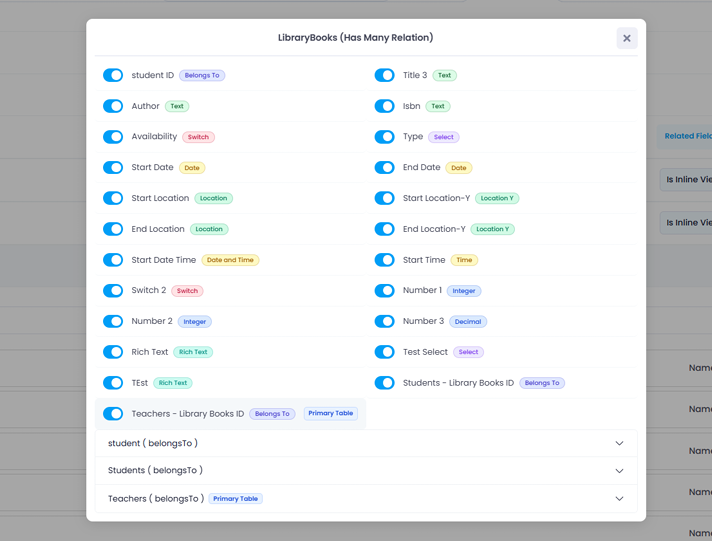
Make sure the relationship contains a Belongs To field that points back to the primary table.
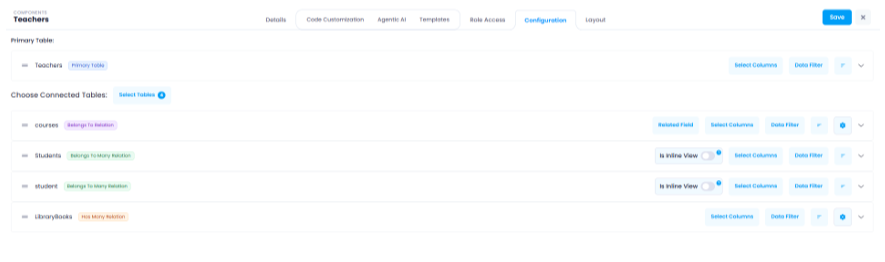
For the example shown below, the primary table is Teachers and the Has Many relationship is LibraryBooks.
The Teachers → LibraryBooks relationship needs to have the primary-table Belongs To relationship enabled.
The relationship configuration shows Teachers (belongsTo) marked as the Primary Table.
2. Use the Primary Table in the Create Access Filter
Once the primary table relationship is configured correctly, the primary table becomes available when creating the role access filter.
Open the Create Access Filter configuration for the relevant role.
The primary table should now be available as a table/source for the filter.
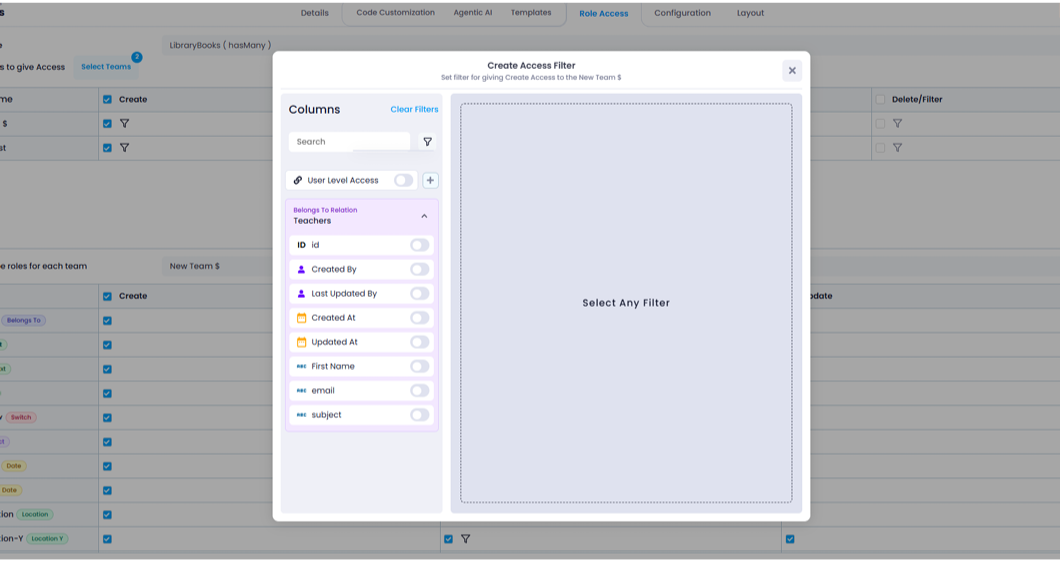
Important: If the Primary Table Belongs To relationship is not enabled in the Has Many relationship, the primary table will not appear in the Create Role Access Filter.
Configuration Flow
Follow these steps to configure the relationship and create the role access filter:
| Step | Action |
|---|---|
| 1 | Open the Has Many relationship configuration. |
| 2 | Enable/configure the primary table's Belongs To relationship. |
| 3 | Open Create Role Access Filter. |
| 4 | Select and configure the primary table as the filter source. |
Result
The primary table is available in the Create Role Access Filter, allowing the role access configuration to use the relationship back to the main table.